Agenda Luce
When this happensEven when you stay open later, it still looks closed to your customers.
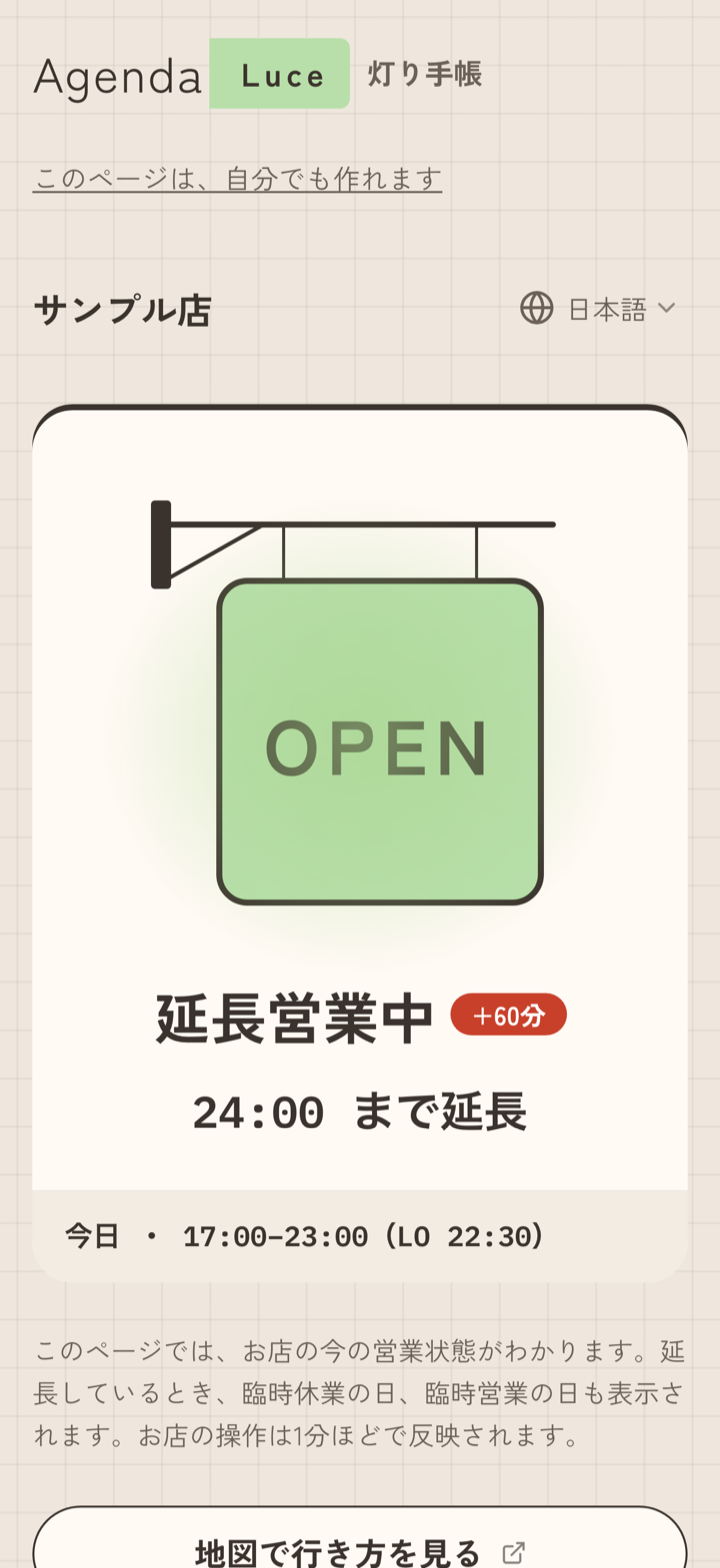
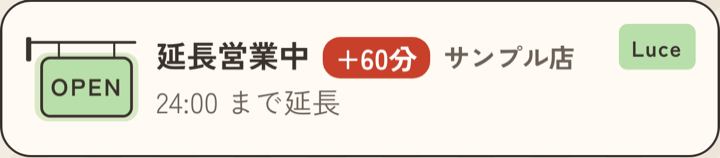
Set your business hours, and the sign turns on and off automatically every day, including hours that run past midnight. The extend button adds 30 minutes each time, as often as you need, and your customers' screen shows that you are open extended and the total. Closing early takes one button too. What you do in the shop reaches your customers' screen in about a minute.
Actual screens
Getting started
- 1Register your shop and enter business hours for each day of the week. Put temporary closures and special openings in the schedule ahead of time, and they take effect on that day
- 2Choose a sign (card or badge) and put it on your shop's website
- 3Press the button to extend or close early. With the QR code for staff, your staff can press it without logging in (reissuing it makes the previous QR code stop working)